 DayZ Companion
 DayZ Companion tool
Magnifier for DayZ
Enlarge a portion of the DayZ image with an on-screen magnifier.
Features
2× magnification
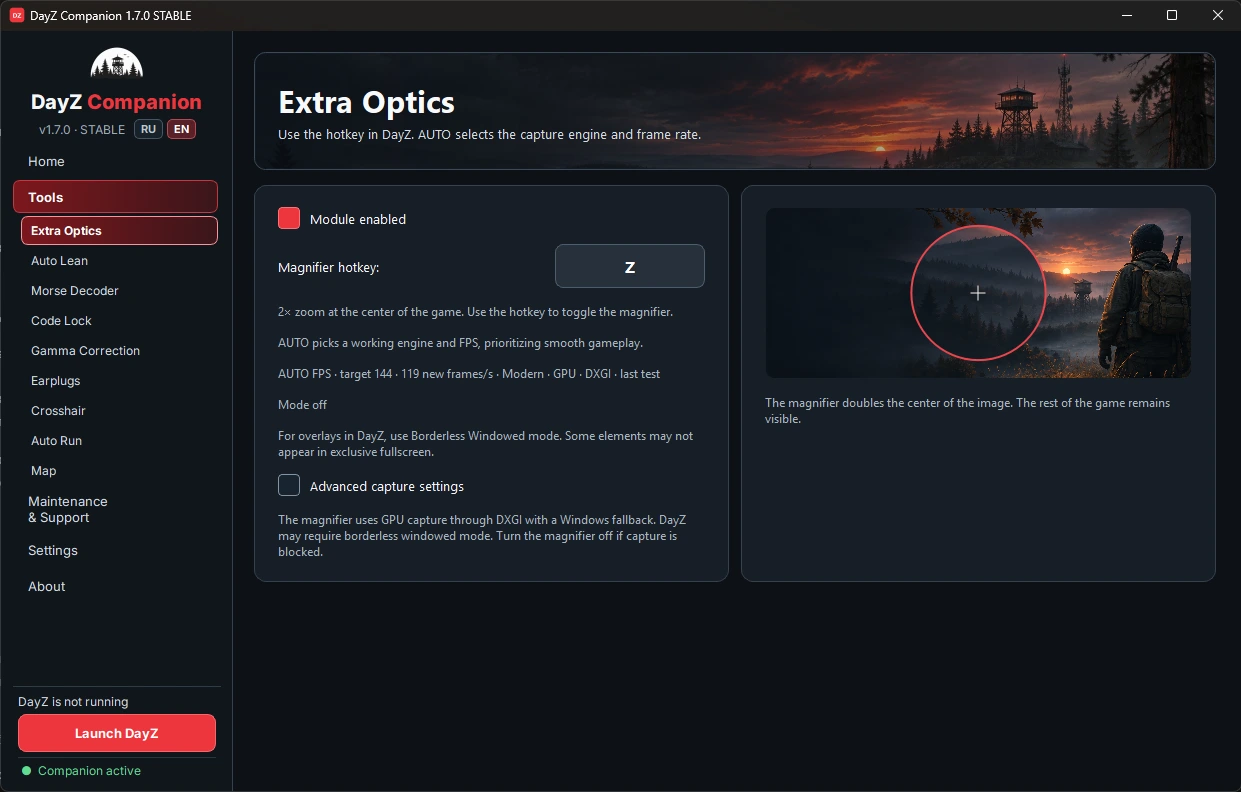
The magnifier displays the centre of the rendered image in a circular window at 2× zoom.
Automatic capture settings
AUTO selects a capture engine and frame rate, prioritising smooth gameplay.
Convenient controls
Assign a hotkey. Short right-click mode is available in advanced settings.
Companion interface
Open the screenshot to take a closer look at the interface.
How to set up the magnifier
Open the magnifier settings
Choose Magnifier in the control centre.
Choose a capture engine
We recommend leaving AUTO selected and assigning a convenient hotkey.
Check the image
Return to DayZ and enable the magnifier. Use borderless windowed mode if needed.
Frequently asked questions
Why is the magnifier black?
Select AUTO and make sure DayZ is running in windowed mode and has focus. If the image still does not appear, contact support.
How does the magnifier work?
It captures and enlarges part of the rendered image in a separate window. The game field of view does not change.
Which capture engine should I choose?
Start with AUTO. Capture or overlay display may be unavailable in exclusive fullscreen.
How do I use right-click mode?
Select short right-click mode in advanced settings. The hotkey enables the mode, and a short right-click shows or hides the magnifier. Holding the button does not toggle it.
What happens when I switch windows?
In hotkey-only mode, the magnifier temporarily hides when DayZ loses focus and reappears when you return.


Download DayZ Companion
Find the current build and first-run instructions on the download page.